USA high-intent model guide
Brother HL-L2460DW Offline or Wi-Fi Not Working? Check the Network Path
For a Brother HL-L2460DW that appears Offline, first confirm whether the printer itself is still connected to the intended Wi-Fi network. If another device can reach it, repair the stale computer queue or saved address instead of resetting the printer or router.
Technical verification
Evidence behind this model guide
Model-specific facts are sourced below. This page does not turn documentation review into a fake hands-on test claim.
Direct answer
What this usually means
If the HL-L2460DW is Offline on one computer but reachable elsewhere, the saved queue or printer address is more likely than a complete wireless failure.
Most likely causes
- Printer and computer are on different or isolated networks
- Router name or password changed
- The printer received a new IP address
- A stale queue still points at an old network path
Safe fix order
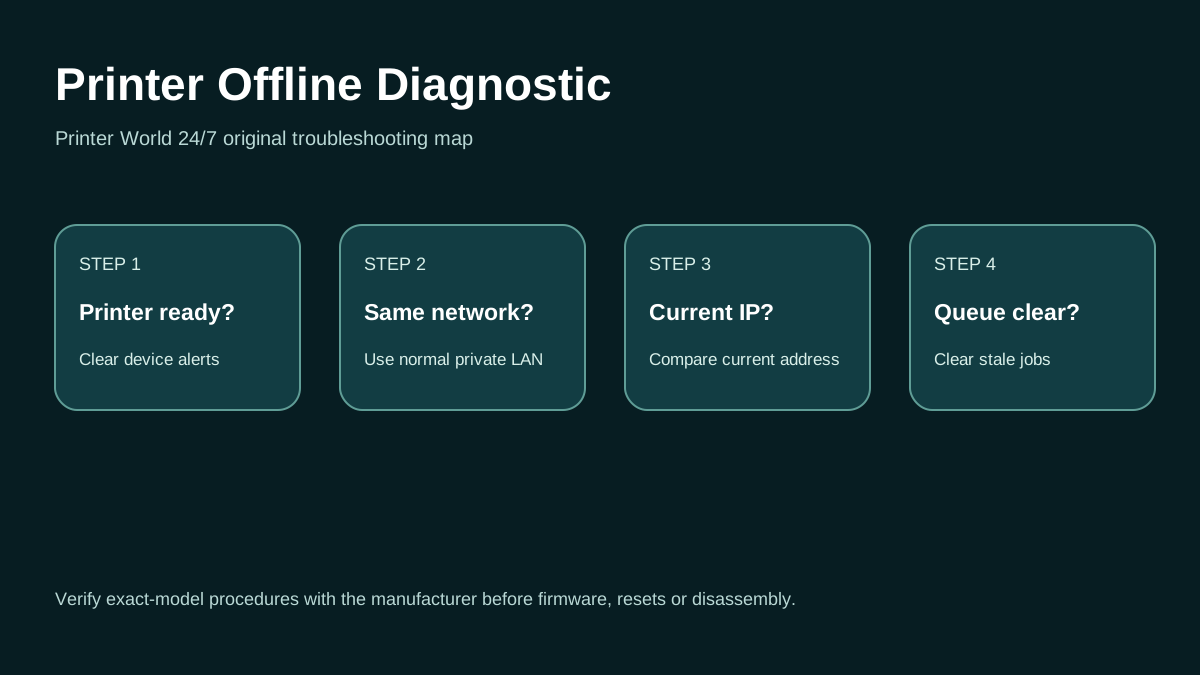
- Check the printer wireless/network status without resetting it.
- Confirm the computer or phone and printer use the same normal LAN, not guest Wi-Fi.
- Print or view the printer network report when the model supports it and note the current address.
- Restart the printer and client device before changing router settings.
- Use the exact manufacturer setup workflow if the printer must be rejoined to Wi-Fi.
Verified model facts
What matters for this exact model
Symptom-based diagnosis
Match what you see before changing settings
| Symptom | What it suggests | Next test |
|---|---|---|
| Printer Wi-Fi indicator is not connected | The failure is between printer and wireless network, not the Windows print queue. | Use Brother's model-specific wireless setup path and verify SSID/password before changing computer drivers. |
| Printer is on Wi-Fi but one computer says Offline | The computer may have a stale queue or old network address. | Compare the printer's current network information with the saved printer entry, then re-add only if the old queue is stale. |
| All devices lose the Brother printer together | The problem is more likely printer/network-side than one computer. | Check printer network status, router reachability and recent router/password changes. |
Model-specific context
Why the HL-L2460DW path matters
Brother maintains current U.S. downloads and troubleshooting resources for the HL-L2460DW family.
Do not assume instructions for a similarly named model are interchangeable. Confirm the full model before drivers, firmware, supplies or resets.
OS / connection context
Wi-Fi / network
This page targets offline or Wi-Fi on Wi-Fi / network. The printer itself should be checked for a physical or consumable alert before software changes are made.
Printer Offline: 3 Safe Checks
A short original walkthrough of printer status, local network and print-queue checks before driver reinstallation.
Official sources
Use these sources to verify model-specific procedures, current drivers and platform behavior.
Frequently asked questions
HL-L2460DW troubleshooting questions
Why does my Brother HL-L2460DW keep showing Offline?
If the printer remains on Wi-Fi, an old queue or changed local address can make one computer report Offline even though the printer is reachable.
Should I factory-reset the HL-L2460DW first?
No. Record the current network status, confirm SSID and reachability, and use Brother's exact wireless setup instructions before a full reset.
If every device loses the printer, is Windows the problem?
Probably not. When all clients fail together, investigate the printer's network connection and router path first.
Related routes for this exact problem
Need support with this exact HL-L2460DW issue?
The support form can carry this page context into the request.
Start contextual support