Printer Help Guide • United States + Canada
Wireless printer setup: connect your printer to Wi-Fi step by step.
Wireless printer setup is easiest when the printer and the computer or phone start on the same intended Wi-Fi network. Put the printer into its manufacturer-supported setup mode, keep it near the router during discovery, add it through the operating system or official printer app, and confirm the connection with a test page before moving it.
Technical verification
What was actually checked
Direct answer
Problem
Wireless printer setup is easiest when the printer and the computer or phone start on the same intended Wi-Fi network. Put the printer into its manufacturer-supported setup mode, keep it near the router during discovery, add it through the operating system or official printer app, and confirm the connection with a test page before moving it.
Most common causes
- Printer is not in wireless setup or pairing mode
- Computer or phone is connected to a different SSID or guest network
- Wi-Fi password or router name entered for the printer is outdated
- Printer is too far from the router during first-time discovery
Quick fix
- Connect the Windows PC, Mac, iPhone or iPad to the Wi-Fi network you want the printer to use
- Place the printer near the router during setup and turn on its manufacturer-documented wireless setup mode
- On Windows 11, open Settings > Bluetooth & devices > Printers & scanners and use Add device after the printer is on the same wireless network
- If Windows does not find it automatically, use Add a new device manually or the manufacturer's official setup method
Advanced fix
- For AirPrint on Apple devices, connect the printer and Apple device to the same Wi-Fi network; supported AirPrint printers do not need an extra Apple printer driver
- Print a network report or test page and verify the printer remains reachable before moving it to its normal location
- If the printer joins Wi-Fi but cannot be discovered later, continue with the Wi-Fi connection troubleshooting guide instead of repeatedly resetting the router
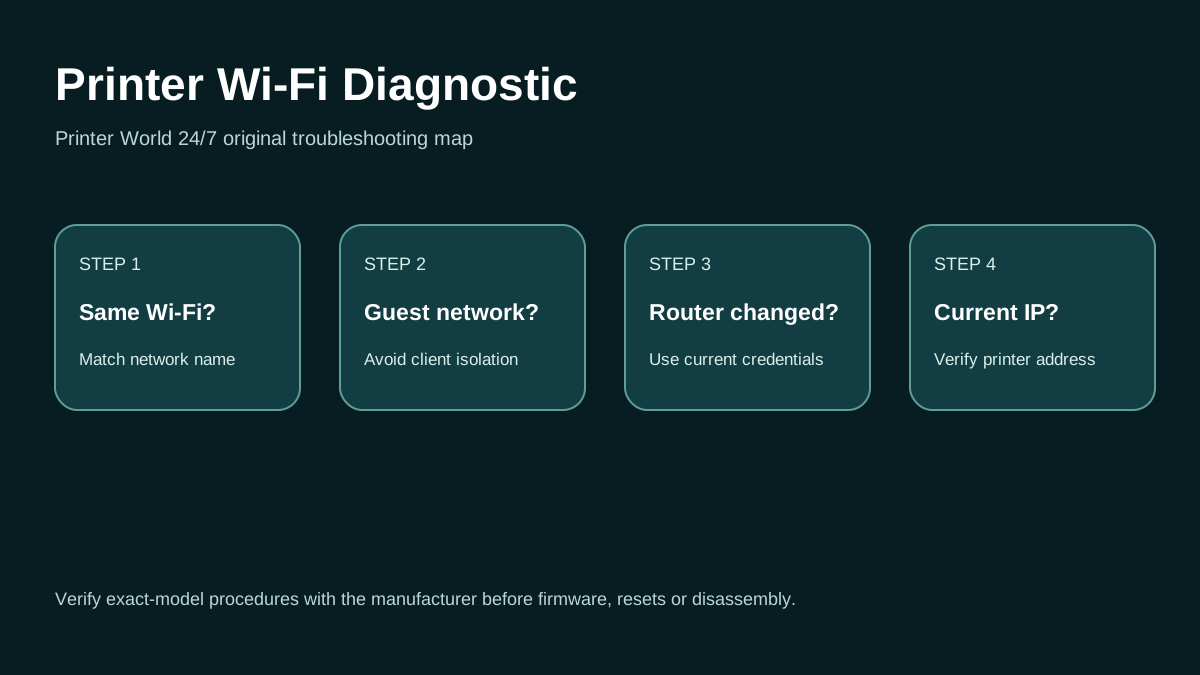
Printer Wi-Fi: 3 Safe Checks
A short original walkthrough for same-network, guest-network and printer-address checks.
Likely causes
What commonly causes this?
- Printer is not in wireless setup or pairing mode
- Computer or phone is connected to a different SSID or guest network
- Wi-Fi password or router name entered for the printer is outdated
- Printer is too far from the router during first-time discovery
- Local-network permissions are disabled for the setup app
- Windows or macOS has an old printer queue from a previous network
Safe troubleshooting
What to try, in order
- Connect the Windows PC, Mac, iPhone or iPad to the Wi-Fi network you want the printer to use
- Place the printer near the router during setup and turn on its manufacturer-documented wireless setup mode
- On Windows 11, open Settings > Bluetooth & devices > Printers & scanners and use Add device after the printer is on the same wireless network
- If Windows does not find it automatically, use Add a new device manually or the manufacturer's official setup method
- For AirPrint on Apple devices, connect the printer and Apple device to the same Wi-Fi network; supported AirPrint printers do not need an extra Apple printer driver
- Print a network report or test page and verify the printer remains reachable before moving it to its normal location
- If the printer joins Wi-Fi but cannot be discovered later, continue with the Wi-Fi connection troubleshooting guide instead of repeatedly resetting the router
Before changing advanced settings
Keep the printer model, operating-system version and exact error message available. Do not share passwords, payment-card details, router-admin credentials or remote-access codes in support chat. Avoid firmware downgrades, router factory resets and hardware disassembly unless the printer manufacturer's instructions for your exact model specifically require them.
Windows users can also use Microsoft's current printer troubleshooting guidance. macOS, iPhone/iPad and Android users should use the operating system's built-in printer/scanner controls plus the manufacturer's official app or support documentation where the model requires it.
Official references
Manufacturer and platform resources
Use official sources for exact model drivers, firmware, warranty status and manufacturer-specific procedures.
Frequently asked questions
Common questions about this printer problem
How do I set up a wireless printer in Windows 11?
Connect the printer and PC to the same wireless network, then open Settings > Bluetooth & devices > Printers & scanners and choose Add device. If Windows does not detect it, use the manual-add option or the printer manufacturer's setup instructions.
Do my printer and computer need to be on the same Wi-Fi?
For normal local wireless discovery, yes. Microsoft specifically instructs Windows users to put a wireless printer on the same wireless network as the Windows device.
Do I need a driver to use AirPrint?
For an AirPrint-enabled printer, Apple says no extra printer driver is required. The Apple device and printer still need to be on the same Wi-Fi network.
Why is my wireless printer not showing during setup?
Common causes include the printer not being in setup mode, different or guest Wi-Fi networks, weak signal, stale router credentials, or an old saved printer entry.
Related help
Continue troubleshooting
Related technical routes
Model-specific guides
Need more context?
Start a Printer World 24/7 support request.
Tell us your printer brand, exact model, country and what happened. We can use that context to point you toward the next troubleshooting step.
Continue with this problem