Printer Help Guide • United States + Canada
Print job stuck in queue? Clear the Windows printer queue safely.
Windows uses the Print Spooler to stage print jobs. A corrupted or permanently stuck job can make several printers appear broken even when the hardware is fine.
Technical verification
What was actually checked
- Windows Print Spooler service present, Running and set to Automatic
- C:\Windows\System32\spool\PRINTERS path present
No physical printer was attached during this environment check, so no model-specific hardware outcome is claimed.
Direct answer
Problem
Windows uses the Print Spooler to stage print jobs. A corrupted or permanently stuck job can make several printers appear broken even when the hardware is fine.
Most common causes
- One job is corrupted and blocks everything behind it
- Print Spooler service stopped unexpectedly
- A driver keeps recreating a failing job
- The printer was removed while jobs were still queued
Quick fix
- Cancel print jobs from the queue first
- Restart the printer and Windows
- Use Microsoft's documented Print Spooler restart procedure if the queue will not clear
- Test one small document after the service restarts
Advanced fix
- If the spooler repeatedly fails, update or reinstall the exact printer driver
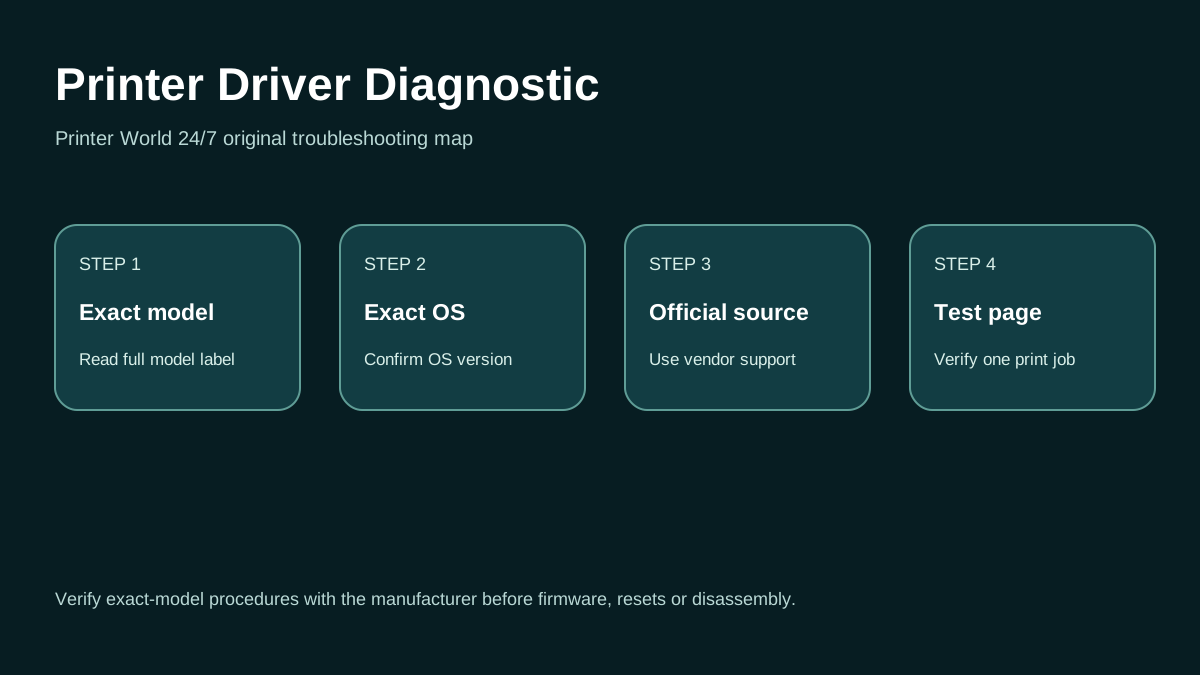
Printer Driver: 3 Safe Checks
A short original walkthrough for identifying the exact printer model, operating system and official driver source.
Likely causes
What commonly causes this?
- One job is corrupted and blocks everything behind it
- Print Spooler service stopped unexpectedly
- A driver keeps recreating a failing job
- The printer was removed while jobs were still queued
Safe troubleshooting
What to try, in order
- Cancel print jobs from the queue first
- Restart the printer and Windows
- Use Microsoft's documented Print Spooler restart procedure if the queue will not clear
- Test one small document after the service restarts
- If the spooler repeatedly fails, update or reinstall the exact printer driver
Before changing advanced settings
Keep the printer model, operating-system version and exact error message available. Do not share passwords, payment-card details, router-admin credentials or remote-access codes in support chat. Avoid firmware downgrades, router factory resets and hardware disassembly unless the printer manufacturer's instructions for your exact model specifically require them.
Windows users can also use Microsoft's current printer troubleshooting guidance. macOS, iPhone/iPad and Android users should use the operating system's built-in printer/scanner controls plus the manufacturer's official app or support documentation where the model requires it.
Official references
Manufacturer and platform resources
Use official sources for exact model drivers, firmware, warranty status and manufacturer-specific procedures.
Related help
Continue troubleshooting
Related technical routes
Model-specific guides
Need more context?
Start a Printer World 24/7 support request.
Tell us your printer brand, exact model, country and what happened. We can use that context to point you toward the next troubleshooting step.
Continue with this problem