Printer Problem Knowledge Base
Printer Queue Stuck in Windows 11? Clear Jobs Safely
Printer queue stuck in Windows 11? Clear jobs that will not delete, restart Print Spooler safely, then fix the queue, port or connection causing it to return.
Technical verification
What was actually checked
- Windows Print Spooler service present, Running and set to Automatic
- C:\Windows\System32\spool\PRINTERS path present
No physical printer was attached during this environment check. This verifies the Windows spooler/queue environment only, not a model-specific printer outcome.
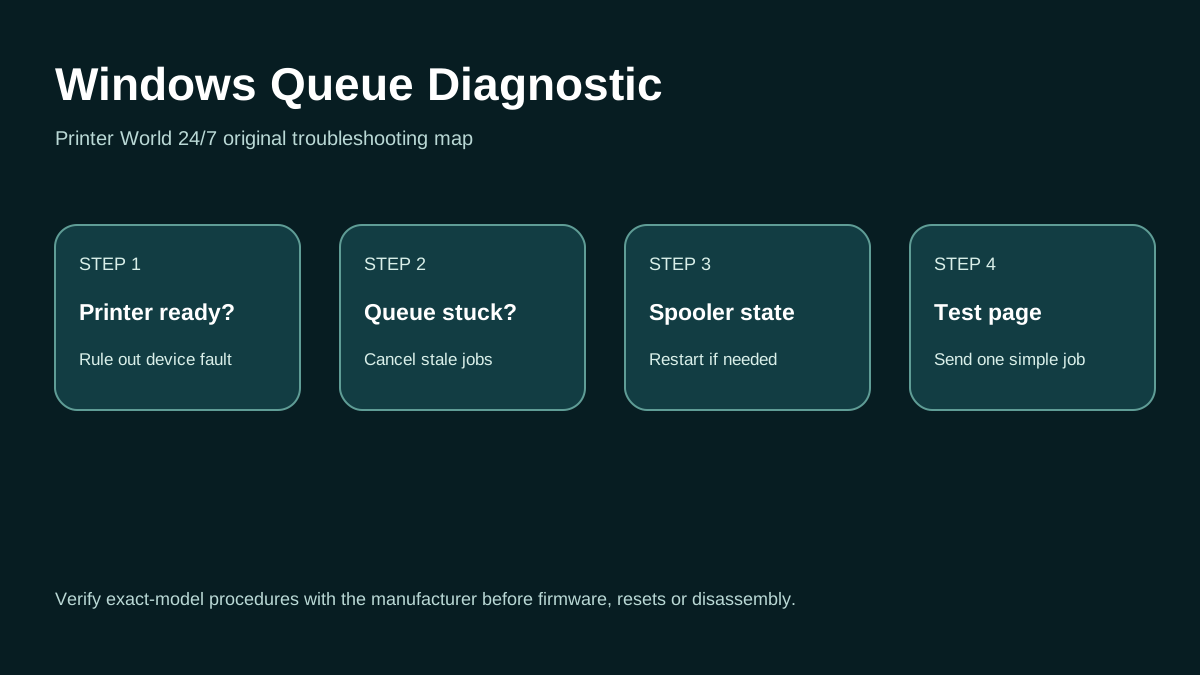
Direct answer
Problem
A print job is stuck in the Windows 11 queue, will not delete, remains in Printing/Error/Deleting/Pending, or blocks every newer job behind it.
Most common causes
- The printer is offline or unreachable, so jobs cannot complete.
- A malformed job is stuck in the queue.
- Print Spooler is hung or stopped.
- The queue targets the wrong/old printer port.
Quick fix
- Check the physical printer for paper, jam, cover, ink/toner and error conditions.
- Confirm USB/Ethernet/Wi-Fi connection before repeatedly cancelling jobs.
- Try cancelling the oldest failed job from Settings > Printers & scanners > Open print queue.
- If all jobs are stuck, note whether the printer is also marked Offline.
Advanced diagnosis
- Cancel jobs from the Windows print queue and wait briefly for the queue to update.
- If jobs remain, stop Print Spooler in Services. Microsoft documents clearing files from %WINDIR%\System32\spool\PRINTERS while the service is stopped, then restarting the service.
- For network printers, verify the current printer IP and same-LAN connectivity.
- If every new job sticks because the printer is unreachable, queue clearing treats the symptom only. Fix Wi-Fi, Ethernet, DHCP, isolation or port configuration.
The detailed platform, network, safety and source sections below explain when each step applies.
What the Windows 11 queue state suggests
| What you see | What it suggests | Best next test |
|---|---|---|
| One job is stuck but later jobs are waiting behind it | A single malformed or failed job may be blocking the queue. | Cancel the oldest failed job first. If it will not clear, stop Print Spooler before removing only the spool job files. |
| Every new job immediately becomes Error | The printer may be unreachable, offline, mapped to an old port, or using a broken driver path. | Check printer readiness and current connection or IP before repeatedly purging the queue. |
| Job remains in Deleting | Print Spooler may still have the job open. | Stop Print Spooler, clear only the documented PRINTERS spool-job files, then restart the service and test one simple page. |
| Phone or Mac prints while Windows 11 queue is stuck | The printer and network are probably reachable; the Windows queue, spooler or driver is the differentiator. | Focus on the Windows printer entry and spooler before changing router or printer network settings. |
Likely causes
- The printer is offline or unreachable, so jobs cannot complete.
- A malformed job is stuck in the queue.
- Print Spooler is hung or stopped.
- The queue targets the wrong/old printer port.
- A driver or application generated a job the printer cannot process.
30-second checks
- Check the physical printer for paper, jam, cover, ink/toner and error conditions.
- Confirm USB/Ethernet/Wi-Fi connection before repeatedly cancelling jobs.
- Try cancelling the oldest failed job from Settings > Printers & scanners > Open print queue.
- If all jobs are stuck, note whether the printer is also marked Offline.
Windows 11 instructions
- Cancel jobs from the Windows print queue and wait briefly for the queue to update.
- If jobs remain, stop Print Spooler in Services. Microsoft documents clearing files from %WINDIR%\System32\spool\PRINTERS while the service is stopped, then restarting the service.
- After the queue is empty, print a simple Windows test page.
- If it jams again immediately, inspect the printer port/IP, duplicate queues, and current driver rather than repeatedly clearing spool files.
- Test from another application to identify app-specific failures.
macOS instructions
- On macOS, open the printer queue and cancel/resume jobs there; Windows spool files do not affect a Mac. If the Mac queue also stalls, investigate printer/network conditions.
iPhone / Android checks where relevant
- Mobile printing can be a useful reachability test. If iPhone/Android prints while Windows jobs stick, focus on the Windows queue/spooler/driver.
Wi-Fi and network troubleshooting
- For network printers, verify the current printer IP and same-LAN connectivity.
- If every new job sticks because the printer is unreachable, queue clearing treats the symptom only. Fix Wi-Fi, Ethernet, DHCP, isolation or port configuration.
Brand and model-specific differences
Large-format, label, secure-print and enterprise printers may hold jobs for authentication, media mismatch or device policy. A “stuck” queue may actually be waiting for a PIN, badge, paper size or printer-side release.
Error-code context
- Windows queue states such as Error/Deleting/Pending do not identify the physical fault.
- If the printer panel shows a paper-size mismatch, secure-print prompt, jam or other code, clear that condition first.
Safe troubleshooting
- Delete only spool job files while Print Spooler is stopped; do not delete unrelated Windows folders.
- Do not kill random Windows processes or edit registry print keys as an early fix.
- On business print servers, coordinate queue purges because other users jobs may be affected.
When professional assistance is actually necessary
Escalate when jobs repeatedly corrupt the spooler, one driver/module crashes printing, the printer port is managed by a server, secure-release rules are involved, or a printer-side hardware error keeps all clients queued.
Frequently asked questions
Windows 11 printer queue questions
Why will a print job not delete in Windows 11?
The Print Spooler can keep a failed job open even after you press Cancel. If normal cancellation fails, stop the spooler before clearing only the documented spool-job files, then restart it.
Should I restart Print Spooler before deleting files?
Microsoft documents stopping the Print Spooler before clearing the PRINTERS spool folder, then starting the service again.
Why does the queue get stuck again after I clear it?
Repeated queue failures usually mean the root cause remains, such as an unreachable printer, old port or IP, duplicate queue, driver problem or printer-side error.
If my phone can print, is the printer broken?
Probably not. If another device can print, focus on the Windows 11 queue, spooler, saved printer entry or driver path.
Related printer problems
Related technical routes
Model-specific guides
Official sources used for this guide
- Microsoft: Fix Print Spooler service errors in Windows
- Microsoft: Fix printer connection and printing problems in Windows
- Brother: Printer status is Offline or Paused
Sources are linked for verification. Printer World 24/7 is independent and is not affiliated with the manufacturers or operating-system vendors referenced here.