Printer Problem Knowledge Base
iPhone Says No AirPrint Printers Found: 9 Checks That Actually Matter
iPhone cannot find an AirPrint printer? Verify compatibility, same-network discovery, router isolation and printer Wi-Fi before reinstalling apps.
Technical verification
What was actually checked
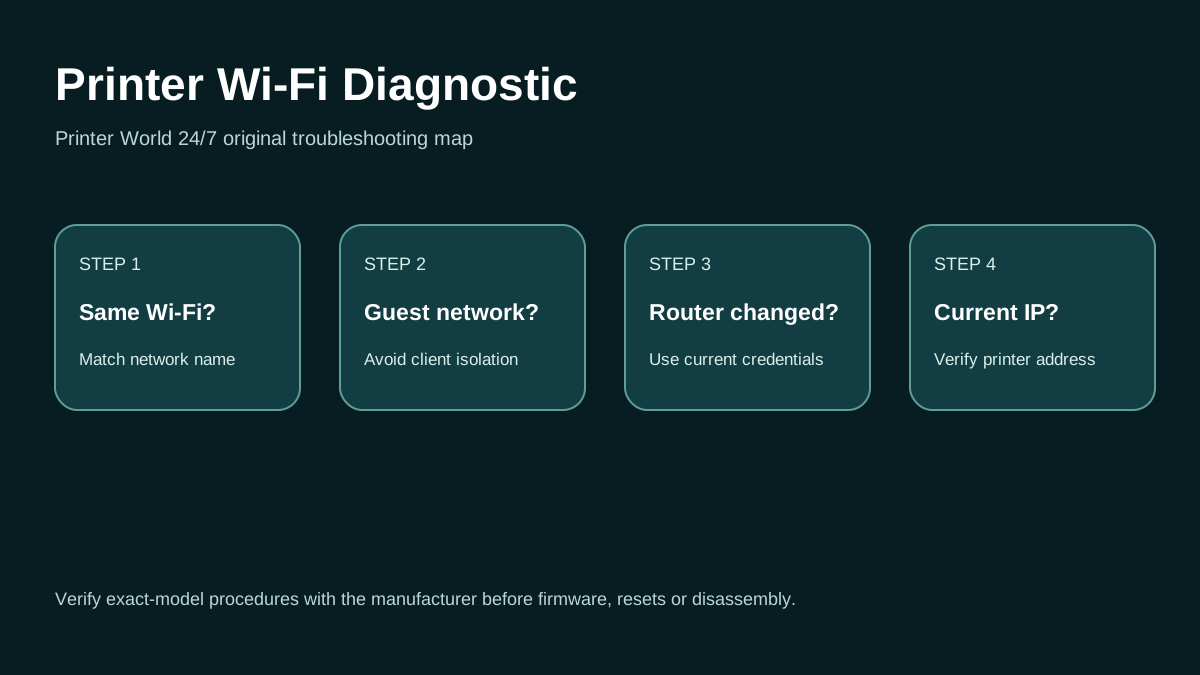
Printer Wi-Fi: 3 Safe Checks
A short original walkthrough for same-network, guest-network and printer-address checks.
Direct answer
Problem
In an iPhone or iPad app, Print opens but “No AirPrint Printers Found” appears, or the expected printer never appears in the printer selector.
Most common causes
- The printer does not support AirPrint or AirPrint is disabled by its configuration.
- iPhone and printer are on different Wi-Fi networks, bands with isolation, or guest networks.
- The printer has lost Wi-Fi even though its display still looks normal.
- Router client isolation/multicast filtering prevents Bonjour/AirPrint discovery.
Quick fix
- Confirm the exact printer model supports AirPrint using Apple/manufacturer information.
- Check that the printer is powered on and Ready with no panel error.
- On iPhone, verify the active Wi-Fi network name. Compare it with the printer network report or display.
- Move the phone and printer onto the same normal LAN; avoid guest Wi-Fi.
Advanced diagnosis
- Windows instructions are only relevant as a comparison test: if a Windows PC on the same LAN prints successfully, the printer network path is probably alive. If Windows also fails, fix printer/network connectivity first.
- AirPrint discovery relies on local-network reachability. Guest Wi-Fi, AP/client isolation, VLAN separation or multicast filtering can prevent discovery even when internet access works.
- If the router was replaced, reconnect the printer to the new SSID/password.
The detailed platform, network, safety and source sections below explain when each step applies.
Likely causes
- The printer does not support AirPrint or AirPrint is disabled by its configuration.
- iPhone and printer are on different Wi-Fi networks, bands with isolation, or guest networks.
- The printer has lost Wi-Fi even though its display still looks normal.
- Router client isolation/multicast filtering prevents Bonjour/AirPrint discovery.
- A temporary network state on the phone, printer, or access point is blocking discovery.
30-second checks
- Confirm the exact printer model supports AirPrint using Apple/manufacturer information.
- Check that the printer is powered on and Ready with no panel error.
- On iPhone, verify the active Wi-Fi network name. Compare it with the printer network report or display.
- Move the phone and printer onto the same normal LAN; avoid guest Wi-Fi.
- Restart the printer and iPhone before resetting network settings.
Windows 11 instructions
- Windows instructions are only relevant as a comparison test: if a Windows PC on the same LAN prints successfully, the printer network path is probably alive. If Windows also fails, fix printer/network connectivity first.
macOS instructions
- On Mac, use Printers & Scanners to see whether the AirPrint printer is discoverable. If Mac also cannot discover it, focus on printer/router networking instead of the iPhone app.
iPhone / Android checks where relevant
- Open the source app, tap Share/Actions > Print, then tap the printer selector. Apple states that the iPhone/iPad and AirPrint printer must be on the same Wi-Fi network.
- If the printer is missing, confirm Wi-Fi on both devices and reconnect the printer according to its model instructions.
- Do not assume installing a manufacturer app is required for AirPrint; AirPrint itself is driverless. Manufacturer apps can still help with setup or diagnostics.
- On Android, Settings > Connected devices > Connection preferences > Printing can provide a useful comparison using an enabled print service.
Wi-Fi and network troubleshooting
- AirPrint discovery relies on local-network reachability. Guest Wi-Fi, AP/client isolation, VLAN separation or multicast filtering can prevent discovery even when internet access works.
- If the router was replaced, reconnect the printer to the new SSID/password.
- Some mesh systems temporarily isolate devices during onboarding; verify both endpoints are on the same reachable LAN.
Brand and model-specific differences
HP, Canon, Epson and Brother each use different control-panel methods to reconnect Wi-Fi. Follow the exact model manual. A button sequence for one series may factory-reset or alter settings on another.
Error-code context
- “No AirPrint Printers Found” is a discovery symptom, not a printer error code.
- If the printer display shows a network or hardware code, use that code as the primary diagnosis.
Safe troubleshooting
- Do not reset all iPhone network settings as the first step because it removes saved network-related configuration.
- Do not disable router security features broadly; change only a setting you understand and can restore.
- Avoid entering Wi-Fi passwords into unofficial support sites.
When professional assistance is actually necessary
Escalate when AirPrint support is confirmed but multiple Apple devices on the same LAN cannot discover the printer, router isolation settings are managed by an ISP/business, or the printer cannot remain connected to Wi-Fi.
Related printer problems
Related technical routes
Model-specific guides
Official sources used for this guide
- Apple: About AirPrint
- Apple: Print from iPhone
- Apple: Add a printer on Mac
- Google: Print from your Android device
Sources are linked for verification. Printer World 24/7 is independent and is not affiliated with the manufacturers or operating-system vendors referenced here.