Printer Problem Knowledge Base
HP Printer Connected to Wi-Fi But Not Printing: 11 Fixes for Windows 11
HP printer shows Wi-Fi connected but Windows 11 will not print? Work through network, queue, driver and IP checks in the safest order.
Technical verification
What was actually checked
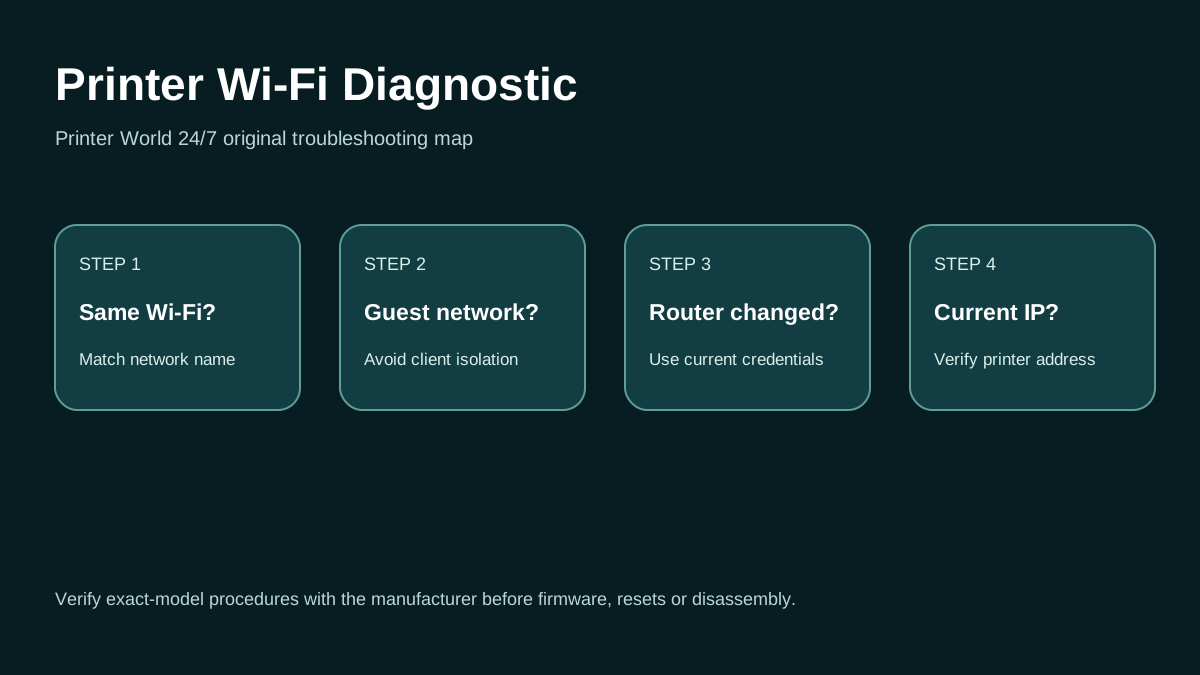
Printer Wi-Fi: 3 Safe Checks
A short original walkthrough for same-network, guest-network and printer-address checks.
Direct answer
Problem
The HP printer reports a wireless connection, often with a solid Wi-Fi icon, but a Windows 11 PC sends jobs that stay queued, fail, disappear, or show the printer as unavailable.
Most common causes
- Windows is using an old or duplicate printer queue.
- The PC and printer are on different SSIDs, guest networks, or isolated network segments.
- The printer received a new IP address after a router restart.
- A stuck print job or spooler state is blocking new jobs.
Quick fix
- Confirm the printer has no paper, ink/toner, cover, jam, or attention error.
- Print a wireless/network report from the printer and note its IP address and signal status.
- Confirm the Windows PC is connected to the same normal home/office network, not a guest SSID.
- Restart the printer and PC; restart the router only after saving other users work.
Advanced diagnosis
- Open Settings > Bluetooth & devices > Printers & scanners and select the HP printer. Open the print queue and cancel stale jobs.
- If multiple copies of the HP printer exist, identify the queue that reaches the current device and remove only obsolete duplicates.
- Compare the printer IP on its network report with the port/address Windows is using.
- Avoid guest Wi-Fi, client isolation, privacy separator, or access-point isolation because they can prevent local device discovery.
The detailed platform, network, safety and source sections below explain when each step applies.
Likely causes
- Windows is using an old or duplicate printer queue.
- The PC and printer are on different SSIDs, guest networks, or isolated network segments.
- The printer received a new IP address after a router restart.
- A stuck print job or spooler state is blocking new jobs.
- The installed driver or HP software no longer matches the active printer queue.
30-second checks
- Confirm the printer has no paper, ink/toner, cover, jam, or attention error.
- Print a wireless/network report from the printer and note its IP address and signal status.
- Confirm the Windows PC is connected to the same normal home/office network, not a guest SSID.
- Restart the printer and PC; restart the router only after saving other users work.
- Try printing a Windows test page before troubleshooting a specific app.
Windows 11 instructions
- Open Settings > Bluetooth & devices > Printers & scanners and select the HP printer. Open the print queue and cancel stale jobs.
- If multiple copies of the HP printer exist, identify the queue that reaches the current device and remove only obsolete duplicates.
- Run the Windows printer troubleshooter in Get Help. Microsoft recommends this as the first automated diagnostic on Windows 11.
- If the queue is stuck, restart Print Spooler from Services. Delete spool files only after stopping the spooler, then start it again.
- Remove and re-add the printer if Windows keeps targeting an old IP or corrupted queue. Prefer the current HP software/driver or an appropriate built-in driver.
- Print a test page again before changing firewall or router settings.
macOS instructions
- On a Mac using the same printer, open System Settings > Printers & Scanners and verify the HP queue is available. If it is stale, add the printer again and test the new queue before deleting the old one.
- AirPrint is usually preferable when the model supports it; Apple notes that AirPrint does not require a separate printer driver.
iPhone / Android checks where relevant
- On iPhone/iPad, verify AirPrint support and place the phone and printer on the same Wi-Fi network.
- On Android, open Settings > Connected devices > Connection preferences > Printing and verify an enabled print service can discover the printer.
- If mobile devices can print but Windows cannot, the problem is probably the Windows queue, driver, firewall, or PC network profile rather than the printer radio.
Wi-Fi and network troubleshooting
- Compare the printer IP on its network report with the port/address Windows is using.
- Avoid guest Wi-Fi, client isolation, privacy separator, or access-point isolation because they can prevent local device discovery.
- If the router recently changed, reconnect the printer to the new SSID and credentials.
- HP recommends restoring Wi-Fi setup mode when setup software cannot find the printer, then completing setup again with the HP app.
Brand and model-specific differences
HP control-panel steps vary by family. Touchscreen models usually expose Wireless or Network Setup menus; button-only DeskJet/LaserJet families use model-specific button sequences. Do not copy a reset sequence from another model. Use the exact model support page before resetting network settings.
Error-code context
- A Windows “Offline” state means the queue is not currently communicating with the device; it is not itself a hardware diagnosis.
- An HP wireless report may flag signal, SSID, or connectivity failures. Treat the report as evidence and fix the named network condition before reinstalling software.
Safe troubleshooting
- Do not factory-reset the printer as an early troubleshooting step; it can erase network, address-book, fax, or enterprise settings.
- Do not disable firewall/security software permanently. If a test requires a temporary change, restore protection immediately afterward.
- Never give a support agent passwords, payment-card data, or remote-access credentials in a chat form.
When professional assistance is actually necessary
Professional assistance is reasonable when the printer cannot obtain a valid network address, repeatedly drops Wi-Fi after verified router and firmware checks, shows a hardware/network-module error, or business printing depends on static IP, VLAN, print-server, or managed firewall settings.
Related printer problems
Related technical routes
Model-specific guides
Official sources used for this guide
- Microsoft: Fix printer connection and printing problems in Windows
- HP: Troubleshoot a Wi-Fi connection to an HP printer
- HP: Printer setup on a Wi-Fi network
- Apple: About AirPrint
- Google: Print from your Android device
Sources are linked for verification. Printer World 24/7 is independent and is not affiliated with the manufacturers or operating-system vendors referenced here.