Printer Problem Knowledge Base
Printer Connected but Not Printing on Mac: Queue, AirPrint and IP Fixes
Mac sees the printer but nothing prints? Check queue state, AirPrint, network address and printer software before resetting the printing system.
Technical verification
What was actually checked
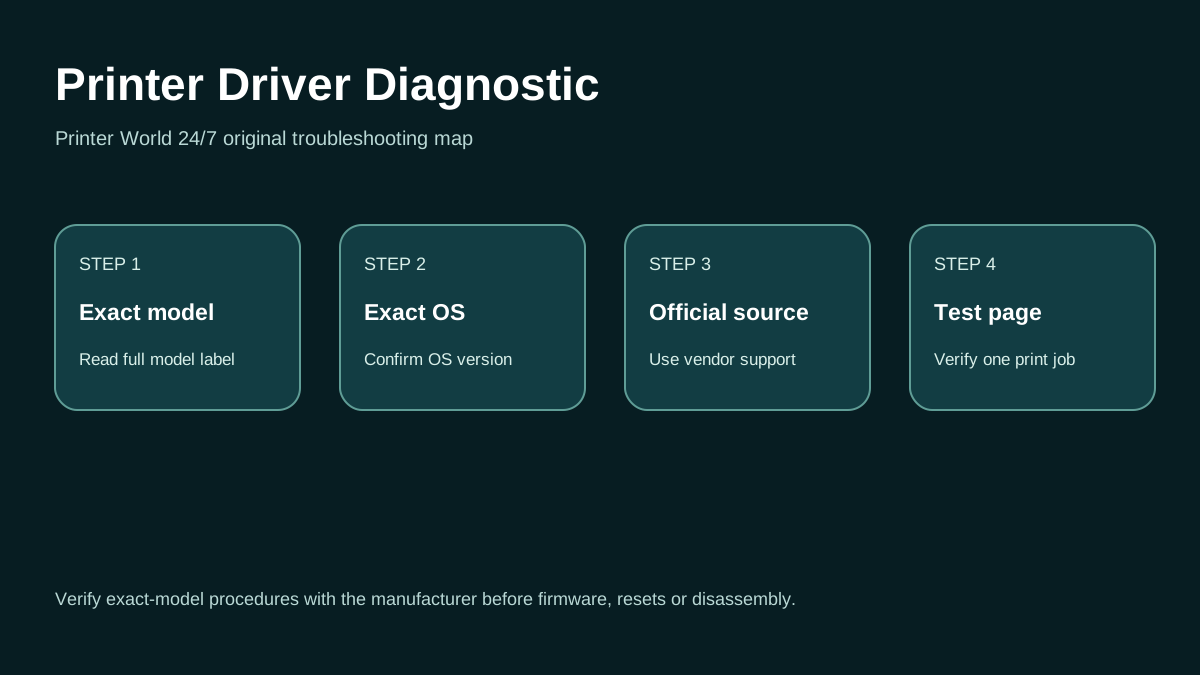
Printer Driver: 3 Safe Checks
A short original walkthrough for identifying the exact printer model, operating system and official driver source.
Direct answer
Problem
The printer appears in macOS Printers & Scanners and may show Ready or Idle, but jobs pause, fail, remain in the queue, or never reach the physical printer.
Most common causes
- The selected Mac queue is stale or corrupted.
- The printer changed IP address or the Mac is on another Wi-Fi network.
- An old vendor driver conflicts with the current macOS version.
- The printer has an unnoticed paper/consumable/hardware error.
Quick fix
- Check printer power, paper, jam indicators, ink/toner, cables and control-panel errors.
- Cancel a stuck job and try a simple one-page document from another app.
- Confirm Mac and printer are on the same network.
- If available, print the printer network/configuration report and note the IP address.
Advanced diagnosis
- If a Windows PC also fails, troubleshoot the printer/network rather than the Mac alone.
- If Windows works but Mac does not, avoid changing the router until the Mac queue has been tested.
- Ensure the Mac is not on guest Wi-Fi or VPN/network configuration that prevents local discovery.
- Compare printer IP with the Mac subnet.
The detailed platform, network, safety and source sections below explain when each step applies.
Likely causes
- The selected Mac queue is stale or corrupted.
- The printer changed IP address or the Mac is on another Wi-Fi network.
- An old vendor driver conflicts with the current macOS version.
- The printer has an unnoticed paper/consumable/hardware error.
- The print job or source application is malformed.
30-second checks
- Check printer power, paper, jam indicators, ink/toner, cables and control-panel errors.
- Cancel a stuck job and try a simple one-page document from another app.
- Confirm Mac and printer are on the same network.
- If available, print the printer network/configuration report and note the IP address.
Windows 11 instructions
- If a Windows PC also fails, troubleshoot the printer/network rather than the Mac alone.
- If Windows works but Mac does not, avoid changing the router until the Mac queue has been tested.
macOS instructions
- Open System Settings > Printers & Scanners, select the printer, and inspect the queue. Resume paused jobs or cancel failed ones.
- Apple recommends adding the printer again to create a new queue when the existing queue may be faulty. Test the new queue before deleting the old one.
- For supported devices, select AirPrint when adding the printer; Apple notes AirPrint works without a separate driver.
- If discovery fails but you know the printer address, add it by IP using a protocol the printer supports such as AirPrint/IPP, LPD, or HP Jetdirect as appropriate.
- Update vendor printer software when AirPrint is not suitable. Reset the macOS printing system only after other troubleshooting fails because it removes printers, completed-job information and presets.
iPhone / Android checks where relevant
- On iPhone/iPad, AirPrint discovery also depends on compatible printer support and reachable network connectivity. If the iPhone sees the printer while Mac does not, rebuild the Mac queue before touching printer Wi-Fi.
- Android printing can be used as another independent reachability test when a supported print service is enabled.
Wi-Fi and network troubleshooting
- Ensure the Mac is not on guest Wi-Fi or VPN/network configuration that prevents local discovery.
- Compare printer IP with the Mac subnet.
- If the printer was recently reconnected to a new router, remove stale queues that still reference the old network path.
Brand and model-specific differences
AirPrint capabilities differ by printer. Some advanced finishing, accounting, secure-print, label, or enterprise features may require manufacturer software instead of a generic AirPrint queue. Verify the exact model feature set before replacing a vendor driver.
Error-code context
- A paused/stopped Mac queue is not a printer hardware error code.
- Printer-panel error codes take priority; clear the physical device condition before rebuilding software queues.
Safe troubleshooting
- Reset Printing System is destructive to Mac printer configuration and should not be the first step.
- Do not install unsigned or unofficial “driver updater” packages.
- For managed offices, preserve authentication, accounting codes and print-server settings before recreating queues.
When professional assistance is actually necessary
Escalate when the printer is reachable but all Mac queues fail after re-adding, secure/enterprise printing requires special configuration, the printer repeatedly changes address, or a physical error persists independently of macOS.
Related printer problems
Related technical routes
Model-specific guides
Official sources used for this guide
Sources are linked for verification. Printer World 24/7 is independent and is not affiliated with the manufacturers or operating-system vendors referenced here.