Printer Problem Knowledge Base
Canon Printer Connected to Wi-Fi but Not Printing: Network and Queue Fixes
Canon printer shows Wi-Fi connected but jobs do not print? Check network status codes, IP, queue and Canon Wi-Fi Connection Assistant before resetting the device.
Technical verification
What was actually checked
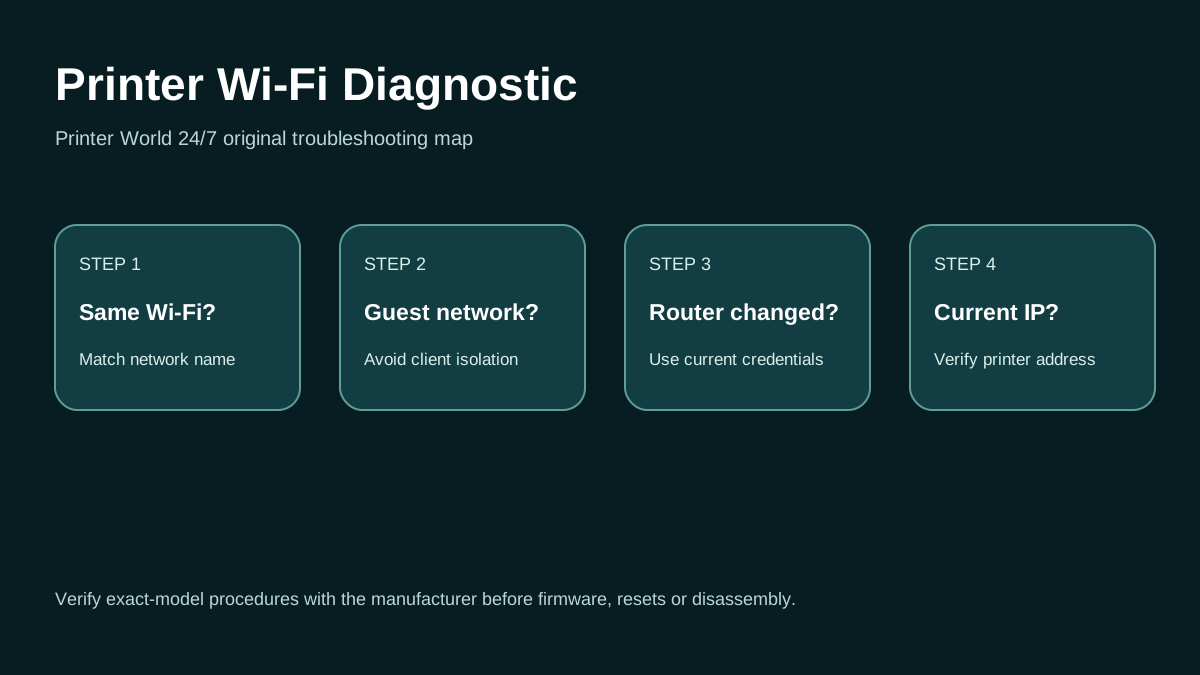
Printer Wi-Fi: 3 Safe Checks
A short original walkthrough for same-network, guest-network and printer-address checks.
Direct answer
Problem
A Canon printer appears connected to the wireless network, but one or more computers cannot print, the queue stalls, or Canon software cannot communicate with the device.
Most common causes
- The printer and computer are on different SSIDs or isolated networks.
- The printer network address changed.
- A Windows/macOS queue points at an old route.
- Firewall/privacy-separator settings block local communication.
Quick fix
- Verify the printer has no paper, jam, cover or ink-related blocking error.
- Print Canon network settings information if the model supports it and check the connection/status code.
- Compare printer SSID with the computer network.
- Test from a second device before reinstalling software.
Advanced diagnosis
- Open the Windows printer queue and cancel failed jobs.
- Run the Windows printer troubleshooter.
- Canon documents status codes on network-setting printouts. For example, C-0 means the network connection itself is normal, so a failure to print should shift attention to PC Wi-Fi, firewall/privacy separation, queue, or software.
- Check router privacy separator/client isolation if devices share an SSID but cannot communicate.
The detailed platform, network, safety and source sections below explain when each step applies.
Likely causes
- The printer and computer are on different SSIDs or isolated networks.
- The printer network address changed.
- A Windows/macOS queue points at an old route.
- Firewall/privacy-separator settings block local communication.
- Canon network setup is incomplete even though Wi-Fi signal appears active.
30-second checks
- Verify the printer has no paper, jam, cover or ink-related blocking error.
- Print Canon network settings information if the model supports it and check the connection/status code.
- Compare printer SSID with the computer network.
- Test from a second device before reinstalling software.
- Restart the printer and computer after recording the current network information.
Windows 11 instructions
- Open the Windows printer queue and cancel failed jobs.
- Run the Windows printer troubleshooter.
- If the Canon IP changed, remove/re-add the queue or correct the port through supported configuration instead of creating endless duplicate printers.
- Canon Wi-Fi Connection Assistant can search for printers, diagnose network settings and repair some connection states on supported models.
- Test a Windows test page before blaming Word, browser, PDF software or another application.
macOS instructions
- On Mac, add the printer again from Printers & Scanners if the existing queue is stale.
- Use AirPrint when the model supports it and advanced vendor-only features are not required.
- If needed, add by IP using a protocol supported by the Canon model.
iPhone / Android checks where relevant
- On iPhone/iPad, AirPrint requires a compatible Canon model and same reachable Wi-Fi network.
- On Android, verify the enabled print service can see the printer; if mobile works and the PC does not, focus on that computer queue/driver.
Wi-Fi and network troubleshooting
- Canon documents status codes on network-setting printouts. For example, C-0 means the network connection itself is normal, so a failure to print should shift attention to PC Wi-Fi, firewall/privacy separation, queue, or software.
- Check router privacy separator/client isolation if devices share an SSID but cannot communicate.
- Confirm the printer current IP rather than assuming a saved address is still valid.
Brand and model-specific differences
Canon menus and status reports vary across PIXMA, MAXIFY, imageCLASS and other families. Wi-Fi Connection Assistant availability and administrator-password requirements also vary. Use the exact model manual for reset or network-change steps.
Error-code context
- Canon network C-series status codes describe connection conditions; interpret them using the model/network documentation rather than generic error-code lists.
- A C-0 network status with failed printing suggests the wireless link itself may be healthy and another layer is failing.
Safe troubleshooting
- Do not change administrator passwords or factory-reset network settings unless necessary.
- Do not disable the firewall permanently.
- If the printer is managed by an office, preserve static IP, address book and authentication settings.
When professional assistance is actually necessary
Professional help is warranted when Canon network reports show repeated failures after correct SSID/router checks, the device cannot retain network settings, enterprise firewall/VLAN rules are involved, or a physical printer error prevents Ready state.
Related printer problems
Related technical routes
Model-specific guides
Official sources used for this guide
- Canon: Wi-Fi Connection Assistant
- Canon: Network status codes
- Microsoft: Fix printer connection and printing problems in Windows
- Apple: About AirPrint
Sources are linked for verification. Printer World 24/7 is independent and is not affiliated with the manufacturers or operating-system vendors referenced here.