Printer Problem Knowledge Base
Printer Offline in Windows 11: Fix the Status Without Guessing
Windows 11 says your printer is offline? Diagnose power, queue, network, IP and driver causes in the right order before reinstalling everything.
Technical verification
What was actually checked
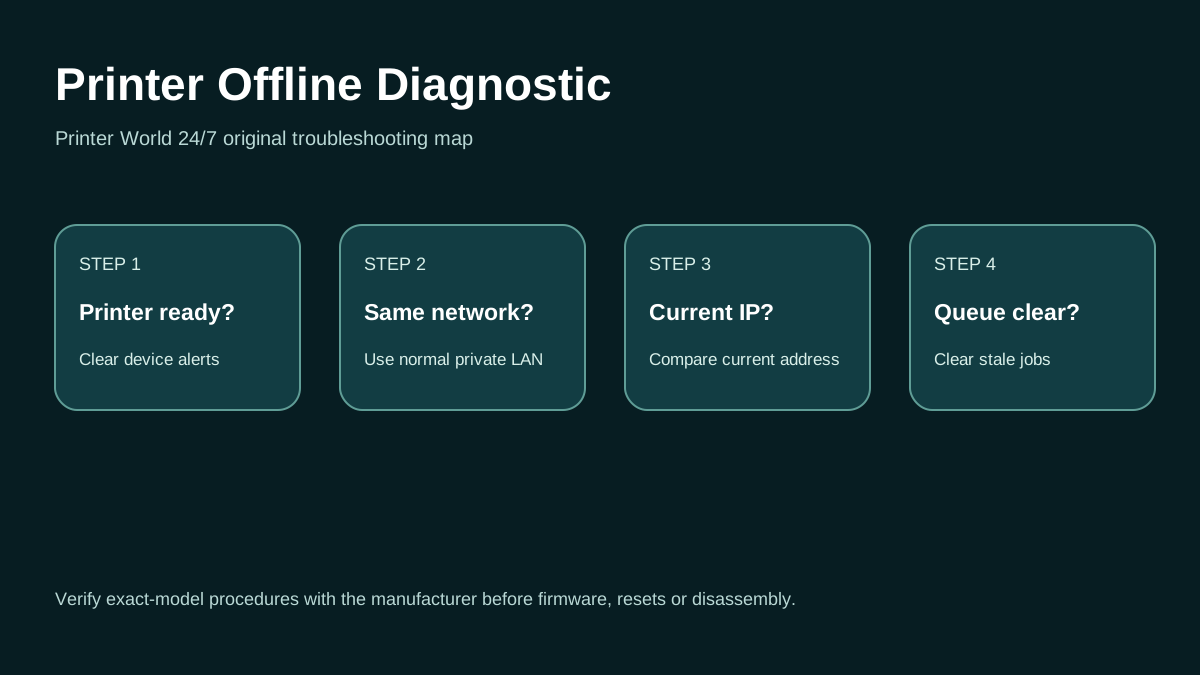
Printer Offline: 3 Safe Checks
A short original walkthrough of printer status, local network and print-queue checks before driver reinstallation.
Direct answer
Problem
The printer appears in Windows 11 but its status is Offline, unavailable, or it accepts no jobs even though the printer itself is powered on.
Most common causes
- The printer is actually disconnected or has an active hardware error.
- Windows is pointing at an old queue, duplicate driver instance, or stale TCP/IP address.
- A failed job is blocking the queue.
- The Print Spooler is stopped or unhealthy.
Quick fix
- Check the printer display/lights for paper, jam, cover, ink/toner, sleep, or error conditions.
- Confirm USB/Ethernet cables or Wi-Fi status before changing Windows settings.
- Power-cycle the printer once and wait until it reaches Ready.
- Try a printer self-test/configuration page if the model supports one.
Advanced diagnosis
- Open Settings > Bluetooth & devices > Printers & scanners, choose the printer, and inspect its queue. Cancel failed jobs.
- Run the Get Help printer troubleshooter.
- Confirm both devices are on the same LAN and that guest/client isolation is not separating them.
- For Ethernet, verify link lights and cable connection.
The detailed platform, network, safety and source sections below explain when each step applies.
Likely causes
- The printer is actually disconnected or has an active hardware error.
- Windows is pointing at an old queue, duplicate driver instance, or stale TCP/IP address.
- A failed job is blocking the queue.
- The Print Spooler is stopped or unhealthy.
- Wireless discovery is failing because PC and printer are not on the same reachable network.
30-second checks
- Check the printer display/lights for paper, jam, cover, ink/toner, sleep, or error conditions.
- Confirm USB/Ethernet cables or Wi-Fi status before changing Windows settings.
- Power-cycle the printer once and wait until it reaches Ready.
- Try a printer self-test/configuration page if the model supports one.
- Note whether another computer or phone can print; that quickly separates device/network faults from one-PC faults.
Windows 11 instructions
- Open Settings > Bluetooth & devices > Printers & scanners, choose the printer, and inspect its queue. Cancel failed jobs.
- Run the Get Help printer troubleshooter.
- If a duplicate printer entry exists, select the queue that is actually communicating and remove only obsolete copies.
- Restart the Print Spooler service if jobs cannot clear or the queue interface behaves abnormally.
- For network printers, verify the configured port/IP still matches the printer current address.
- If the queue remains corrupted, remove and add the printer again rather than repeatedly toggling “offline” settings.
macOS instructions
- On macOS, an apparently unavailable printer should be checked in System Settings > Printers & Scanners. Apple recommends checking printer status, software, and adding the printer again to create a fresh queue when appropriate.
- If a new queue works, remove the stale queue after testing.
iPhone / Android checks where relevant
- If iPhone/Android printing works while Windows says Offline, focus on the Windows queue and PC networking.
- If no device can see the printer, focus first on printer power, network connection, router isolation, or printer Wi-Fi setup.
Wi-Fi and network troubleshooting
- Confirm both devices are on the same LAN and that guest/client isolation is not separating them.
- For Ethernet, verify link lights and cable connection.
- For Wi-Fi, compare the printer network report with the router SSID and IP range.
- A 169.254.x.x-style address commonly indicates that normal DHCP addressing failed; fix network assignment before reinstalling drivers.
Brand and model-specific differences
Brother and other manufacturers sometimes document an “Offline” queue state separately from network faults. HP, Canon, Epson and Brother control-panel recovery steps differ by model, so use the exact model manual before resetting network settings.
Error-code context
- “Offline” in Windows describes communication state, not a single error code.
- If the printer itself shows a numeric/alphanumeric error, resolve that device error first because Windows queue changes cannot repair a jam sensor, cover switch, formatter, or consumable fault.
Safe troubleshooting
- Do not repeatedly unplug a printer during firmware updates.
- Do not delete enterprise queues or static port settings unless you know how they were configured.
- Avoid permanent firewall disabling as a “fix.”
When professional assistance is actually necessary
Escalate when the printer is reachable only intermittently, has a hardware error, requires managed print-server/VLAN configuration, or multiple devices fail after router and printer network reports have been checked.
Related printer problems
Related technical routes
Model-specific guides
Official sources used for this guide
- Microsoft: Fix printer connection and printing problems in Windows
- Brother: Printer status is Offline or Paused
- Apple: Solve printing problems on Mac
Sources are linked for verification. Printer World 24/7 is independent and is not affiliated with the manufacturers or operating-system vendors referenced here.