Printer Problem Knowledge Base
Epson Printer Connected to Wi-Fi but Not Printing? Queue & IP Fixes
Epson printer connected to Wi-Fi but not printing? Check the current IP, print queue and Epson driver path before resetting a working wireless connection.
Technical verification
What was actually checked
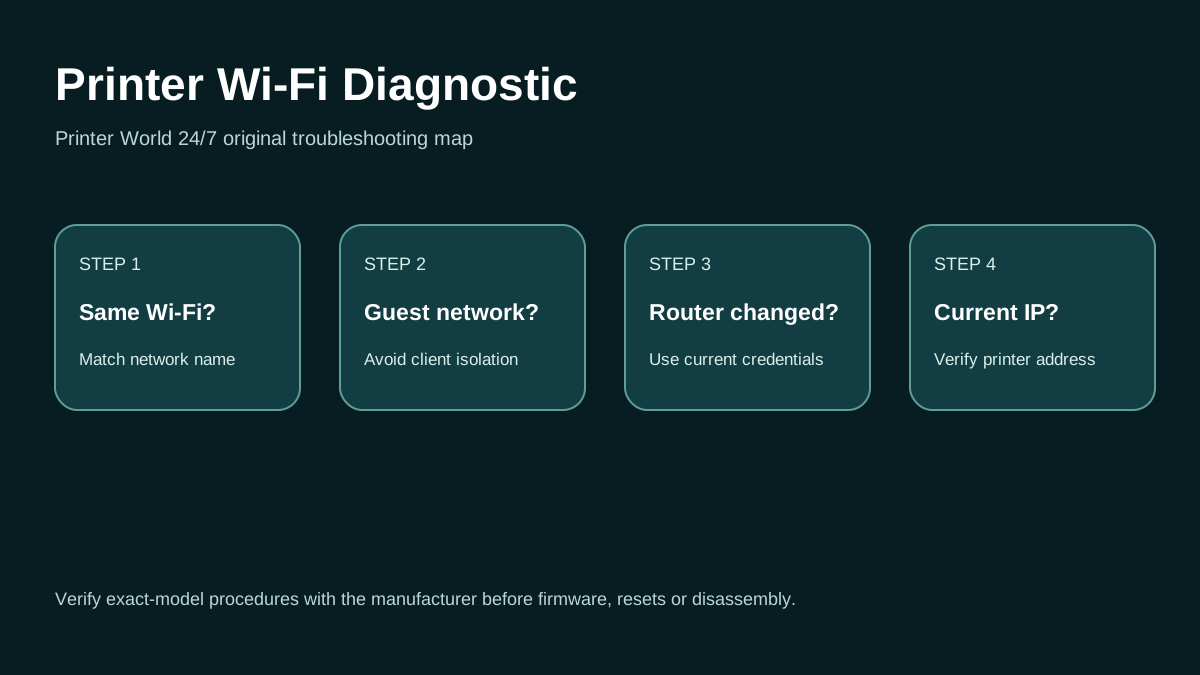
Printer Wi-Fi: 3 Safe Checks
A short original walkthrough for same-network, guest-network and printer-address checks.
Direct answer
Problem
The Epson printer shows that it is connected to Wi-Fi, but print jobs fail, remain queued, or one computer cannot reach the printer. A Wi-Fi icon confirms network association, not that the current print queue points to the right printer address.
Most common causes
- The printer and computer are not actually on the same reachable wireless network.
- The printer has an invalid or changed TCP/IP address.
- A stale queue points at an old address.
- The Epson driver/network software is missing, damaged, or not current.
Quick fix
- Check the printer panel for hardware or consumable errors.
- Print a network status sheet and, where supported, a network connection report.
- Confirm the report says Connected and note the IP address and signal strength.
- Compare the computer SSID/network with the printer.
Advanced diagnosis
- Cancel failed queue jobs and run the Windows printer troubleshooter.
- Confirm Windows is using the intended Epson queue and current network address.
- Epson recommends checking a network status sheet, IP address, same-network status and signal strength.
- Poor signal can improve by moving the printer/router closer and reducing obstacles or interference.
The detailed platform, network, safety and source sections below explain when each step applies.
Likely causes
- The printer and computer are not actually on the same reachable wireless network.
- The printer has an invalid or changed TCP/IP address.
- A stale queue points at an old address.
- The Epson driver/network software is missing, damaged, or not current.
- Signal, privacy separator, or router isolation is interrupting local communication.
30-second checks
- Check the printer panel for hardware or consumable errors.
- Print a network status sheet and, where supported, a network connection report.
- Confirm the report says Connected and note the IP address and signal strength.
- Compare the computer SSID/network with the printer.
- Try another device to learn whether the fault follows the printer or one computer.
Windows 11 instructions
- Cancel failed queue jobs and run the Windows printer troubleshooter.
- Confirm Windows is using the intended Epson queue and current network address.
- Install the current genuine Epson printer driver/software where the model requires it; Epson notes that functionality can be limited without the genuine driver.
- If the IP is 169.254.x.x or otherwise outside the normal LAN range, resolve DHCP/network assignment before reinstalling applications.
- After network corrections, remove/re-add the queue if it still points to stale settings.
macOS instructions
- On Mac, test a newly added printer queue from Printers & Scanners.
- Use AirPrint if the exact Epson model supports it and you do not require vendor-specific features.
- If the Mac and Epson are on different networks, fix that first; queue recreation cannot bridge isolated networks.
iPhone / Android checks where relevant
- On iPhone/iPad, verify AirPrint compatibility and same Wi-Fi.
- On Android, verify an enabled print service can discover the device.
- If mobile prints but Windows fails, prioritize the Windows queue, driver and firewall path.
Wi-Fi and network troubleshooting
- Epson recommends checking a network status sheet, IP address, same-network status and signal strength.
- Poor signal can improve by moving the printer/router closer and reducing obstacles or interference.
- Some routers use privacy separator/client isolation that blocks local devices from reaching one another.
- Where 2.4/5 GHz behavior matters, follow the exact Epson model/router guidance rather than assuming every printer supports every band.
Brand and model-specific differences
EcoTank, WorkForce, Expression and business Epson models have different displays, network reports and supported Wi-Fi bands. Do not use an arbitrary reset-button recipe. Use the model-specific network report and setup instructions.
Error-code context
- A disconnected network report points to connectivity first.
- A 169.254.x.x address is evidence that normal address assignment may have failed.
- If the printer panel reports an ink, paper, maintenance-box or hardware code, resolve that physical condition separately.
Safe troubleshooting
- Do not manually assign a static IP unless you understand the router subnet and address plan.
- Avoid permanent firewall disabling.
- Do not interrupt firmware updates or reset enterprise printers without recording their settings.
When professional assistance is actually necessary
Escalate when the Epson cannot obtain or retain a valid IP, network reports show persistent failure despite correct SSID and router settings, several devices cannot print, or business networks use managed VLAN/firewall/print-server configuration.
Frequently asked questions
Windows 11 printer queue questions
Why is my Epson printer connected to Wi-Fi but not printing?
The Epson can be on Wi-Fi while the computer still uses a stale queue or old IP address. Check the printer network report, current address and the active queue before resetting Wi-Fi.
What if my phone prints to the Epson but Windows does not?
That strongly suggests the printer and Wi-Fi path are working. Focus on the Windows queue, saved printer entry, driver and local firewall/discovery path.
Should I reset Epson Wi-Fi if the printer already says Connected?
Not first. Verify the current network report and queue/IP path. Resetting a working wireless connection can create a second problem without fixing the stale computer queue.
Related printer problems
Related technical routes
Model-specific guides
Official sources used for this guide
- Epson: Cannot print over a network
- Microsoft: Fix printer connection and printing problems in Windows
- Apple: About AirPrint
Sources are linked for verification. Printer World 24/7 is independent and is not affiliated with the manufacturers or operating-system vendors referenced here.