Printer Problem Knowledge Base
Printer Driver Is Unavailable in Windows 11: Fix Compatibility and Queue Problems
Windows 11 says “Driver is unavailable”? Identify whether the issue is an obsolete package, wrong queue, ARM compatibility or a printer that can use a built-in driver.
Technical verification
What was actually checked
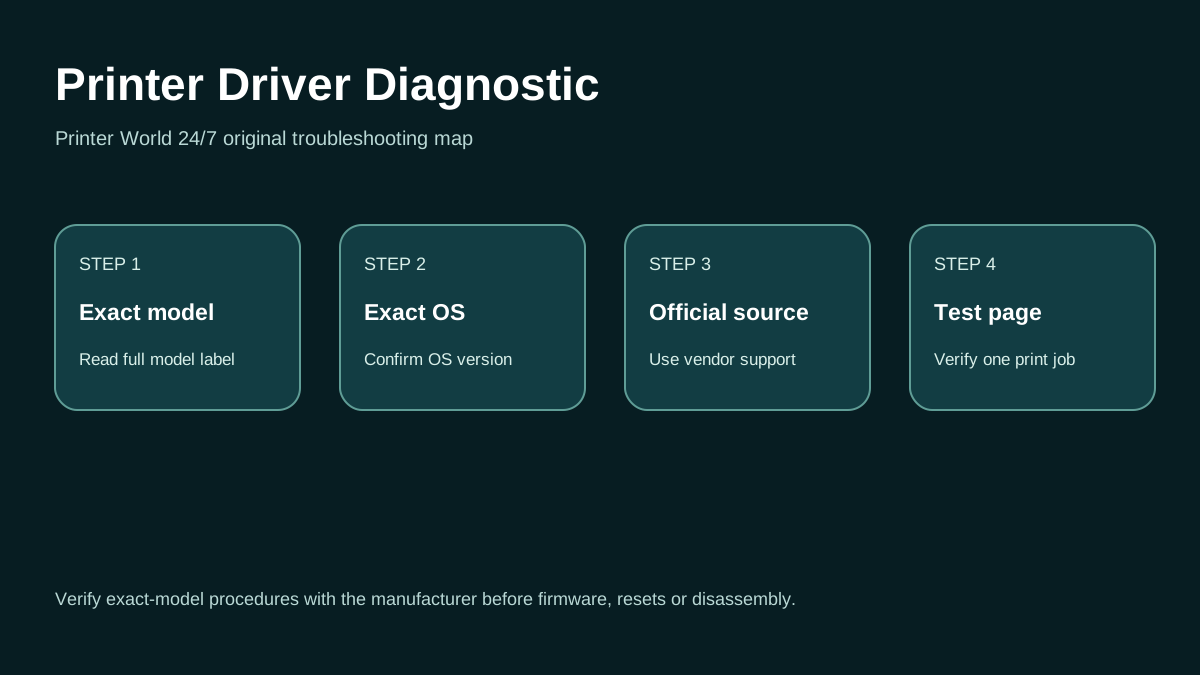
Printer Driver: 3 Safe Checks
A short original walkthrough for identifying the exact printer model, operating system and official driver source.
Direct answer
Problem
The printer is listed in Windows 11 but shows Driver unavailable, cannot print, or reappears with the same error after a restart.
Most common causes
- The installed driver is damaged, outdated or not compatible with the current Windows build.
- Windows is attached to an obsolete duplicate printer queue.
- A manufacturer installer does not support the PC architecture, including some ARM-based systems.
- Windows Update or a vendor package changed the printing stack.
Quick fix
- Record the exact printer model and Windows edition/build before downloading anything.
- Check whether the printer can print from another computer or phone.
- Disconnect/reconnect USB only after confirming there is no firmware update in progress.
- Look for duplicate queues and note which one, if any, works.
Advanced diagnosis
- Run the Get Help printer troubleshooter.
- Open Settings > Bluetooth & devices > Printers & scanners and remove only the broken duplicate queue if another working queue exists.
- Driver unavailable is often local to Windows, but a network printer still needs a valid IP and reachable LAN.
- Do not repeatedly create new TCP/IP ports without checking which address the printer currently owns.
The detailed platform, network, safety and source sections below explain when each step applies.
Likely causes
- The installed driver is damaged, outdated or not compatible with the current Windows build.
- Windows is attached to an obsolete duplicate printer queue.
- A manufacturer installer does not support the PC architecture, including some ARM-based systems.
- Windows Update or a vendor package changed the printing stack.
- The device can use an inbox/class/IPP driver but Windows is trying to use an older vendor package.
30-second checks
- Record the exact printer model and Windows edition/build before downloading anything.
- Check whether the printer can print from another computer or phone.
- Disconnect/reconnect USB only after confirming there is no firmware update in progress.
- Look for duplicate queues and note which one, if any, works.
Windows 11 instructions
- Run the Get Help printer troubleshooter.
- Open Settings > Bluetooth & devices > Printers & scanners and remove only the broken duplicate queue if another working queue exists.
- Use Windows Update and the manufacturer official support page to obtain current drivers.
- Microsoft notes that some ARM PCs may be unable to add/install a printer with a manufacturer installer; in that case use Windows Add printer/install flow as documented.
- For network printers, verify the printer is reachable before reinstalling software; a driver reinstall cannot repair a disconnected printer.
- After reinstalling, print a Windows test page before testing complex applications.
macOS instructions
- On Mac, driver errors are handled differently. macOS commonly uses AirPrint for supported printers, avoiding a separate driver. For non-AirPrint models, install current manufacturer software.
iPhone / Android checks where relevant
- iPhone/iPad AirPrint and Android print services can help confirm that the printer hardware/network works independently of the Windows driver.
- If mobile printing works, keep troubleshooting the Windows software/queue path.
Wi-Fi and network troubleshooting
- Driver unavailable is often local to Windows, but a network printer still needs a valid IP and reachable LAN.
- Do not repeatedly create new TCP/IP ports without checking which address the printer currently owns.
Brand and model-specific differences
Vendor packages differ by model and generation. Older printers may rely on Windows class drivers or limited-feature drivers; newer multifunction devices may need manufacturer software for scanning, secure print, finishing or maintenance features.
Error-code context
- “Driver is unavailable” is a Windows state, not a printer-panel code.
- If Device Manager or setup reports a specific installation error, preserve the exact code/message for diagnosis rather than replacing random system files.
Safe troubleshooting
- Download drivers only from Microsoft/Windows Update or the printer manufacturer.
- Avoid third-party driver-updater utilities and DLL-download sites.
- Do not remove shared enterprise print drivers without IT approval.
When professional assistance is actually necessary
Escalate when no supported driver exists for the Windows architecture/version, signed driver installation repeatedly fails, enterprise policy blocks installation, or the printer requires a legacy print server/workflow that must be migrated.
Related printer problems
Related technical routes
Model-specific guides
Official sources used for this guide
Sources are linked for verification. Printer World 24/7 is independent and is not affiliated with the manufacturers or operating-system vendors referenced here.