Printer Problem Knowledge Base
Print Spooler Keeps Stopping in Windows 11: Safe Repair Steps
Print Spooler stops repeatedly in Windows 11? Clear damaged queue data, isolate bad drivers and restore the service without random registry edits.
Technical verification
What was actually checked
- Windows Print Spooler service present, Running and set to Automatic
- C:\Windows\System32\spool\PRINTERS path present
No physical printer was attached during this environment check. This verifies the Windows spooler/queue environment only, not a model-specific printer outcome.
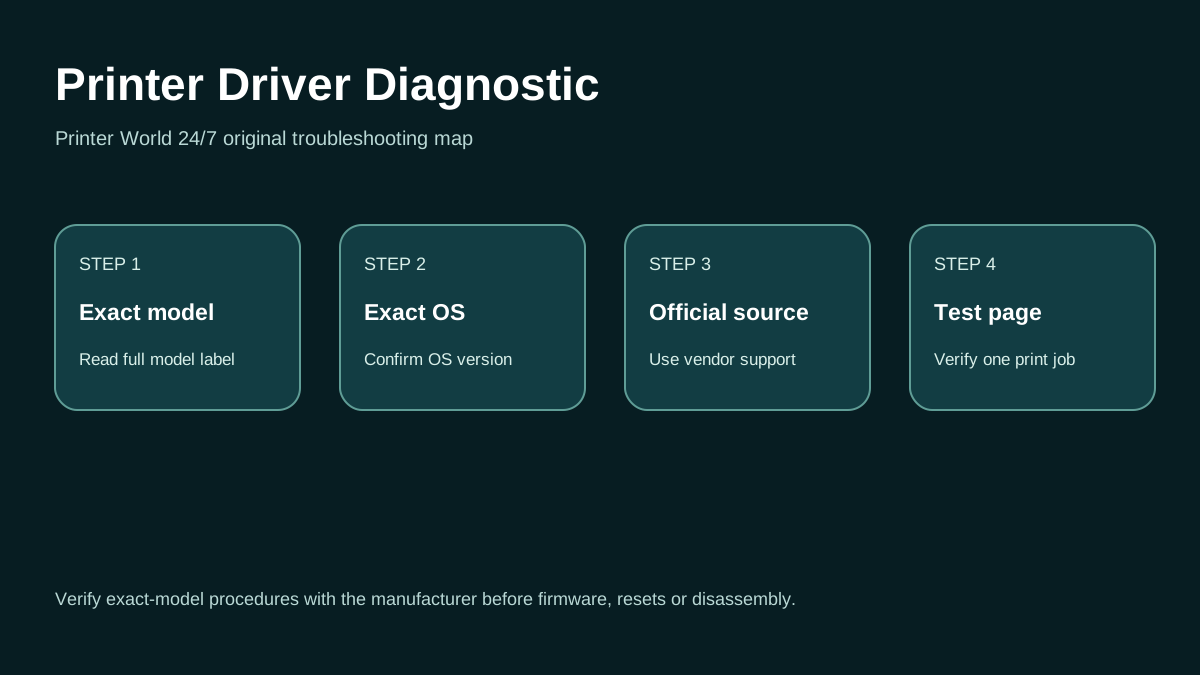
Printer Driver: 3 Safe Checks
A short original walkthrough for identifying the exact printer model, operating system and official driver source.
Direct answer
Problem
Printing fails because the Print Spooler service stops, restarts and stops again, the queue will not open, or applications report that no printers are available.
Most common causes
- A corrupt job file is crashing or blocking the spooler.
- A damaged or incompatible third-party printer driver is loading into the printing subsystem.
- A printer utility or port monitor is malfunctioning.
- Windows system files or permissions are damaged.
Quick fix
- Restart Windows once before deleting anything.
- Open Services and check whether Print Spooler is Running; note whether it stops immediately after Start.
- Disconnect nonessential USB printers temporarily to see whether one device/driver triggers the failure.
- Record the affected printer models and recent driver/software changes.
Advanced diagnosis
- Open Services, stop Print Spooler, then clear only the files inside %WINDIR%\System32\spool\PRINTERS as Microsoft documents. Start Print Spooler again and set Startup type to Automatic if appropriate.
- If the spooler stops again before printing, remove recently added or duplicate printer queues one at a time.
- Network addressing still matters for TCP/IP queues, but repeated spooler crashes usually point first to Windows queue/driver components rather than Wi-Fi signal.
- Do not change router settings merely because the spooler service stops.
The detailed platform, network, safety and source sections below explain when each step applies.
Likely causes
- A corrupt job file is crashing or blocking the spooler.
- A damaged or incompatible third-party printer driver is loading into the printing subsystem.
- A printer utility or port monitor is malfunctioning.
- Windows system files or permissions are damaged.
- Security software or enterprise policy is interfering with the service.
30-second checks
- Restart Windows once before deleting anything.
- Open Services and check whether Print Spooler is Running; note whether it stops immediately after Start.
- Disconnect nonessential USB printers temporarily to see whether one device/driver triggers the failure.
- Record the affected printer models and recent driver/software changes.
Windows 11 instructions
- Open Services, stop Print Spooler, then clear only the files inside %WINDIR%\System32\spool\PRINTERS as Microsoft documents. Start Print Spooler again and set Startup type to Automatic if appropriate.
- If the spooler stops again before printing, remove recently added or duplicate printer queues one at a time.
- Install current vendor drivers only from the manufacturer or use Windows built-in class drivers when supported.
- Use Windows Update and the Get Help printer troubleshooter before making deeper system changes.
- If one specific application triggers the crash, test from Notepad or a Windows test page to separate app-specific printing from subsystem failure.
macOS instructions
- macOS does not use the Windows Print Spooler service. If the same physical printer fails on Mac, troubleshoot that Mac queue separately; Apple suggests creating a new printer queue and, only after other steps fail, resetting the printing system.
iPhone / Android checks where relevant
- Mobile printing is not controlled by the Windows spooler. If iPhone or Android can print, that supports the conclusion that the printer and network are functioning and the fault is local to Windows.
Wi-Fi and network troubleshooting
- Network addressing still matters for TCP/IP queues, but repeated spooler crashes usually point first to Windows queue/driver components rather than Wi-Fi signal.
- Do not change router settings merely because the spooler service stops.
Brand and model-specific differences
Printer-specific port monitors and driver packages can differ significantly. Business laser and label printers may install vendor services in addition to standard Windows printing. Remove or update only software associated with the affected model, not unrelated printer packages.
Error-code context
- Event Viewer may record application/service errors when spoolsv.exe or a driver module fails. Use the module name as diagnostic evidence rather than downloading random DLL replacements.
- A stopped Spooler service is a Windows service condition; numeric printer-panel errors must be handled separately.
Safe troubleshooting
- Do not download replacement DLL files from third-party DLL sites.
- Do not delete the entire spool directory or registry branches from generic internet instructions.
- If this is a managed business PC, coordinate driver removal with IT because shared queues can be deployed by policy.
When professional assistance is actually necessary
Professional or IT assistance is appropriate when spooler crashes continue after queue clearing and current drivers, Event Viewer identifies a recurring vendor module, Windows system integrity is damaged, or Group Policy/print-server deployment controls the printer.
Related printer problems
Related technical routes
Model-specific guides
Official sources used for this guide
- Microsoft: Fix printer connection and printing problems in Windows
- Brother: Printer status is Offline or Paused
Sources are linked for verification. Printer World 24/7 is independent and is not affiliated with the manufacturers or operating-system vendors referenced here.