Printer Problem Knowledge Base
Brother Printer Offline in Windows 11: Queue, IP and Wi-Fi Fixes
Brother printer appears Offline in Windows 11? Check power, queue copies, network configuration, IP/subnet and Wi-Fi recovery in a safe order.
Technical verification
What was actually checked
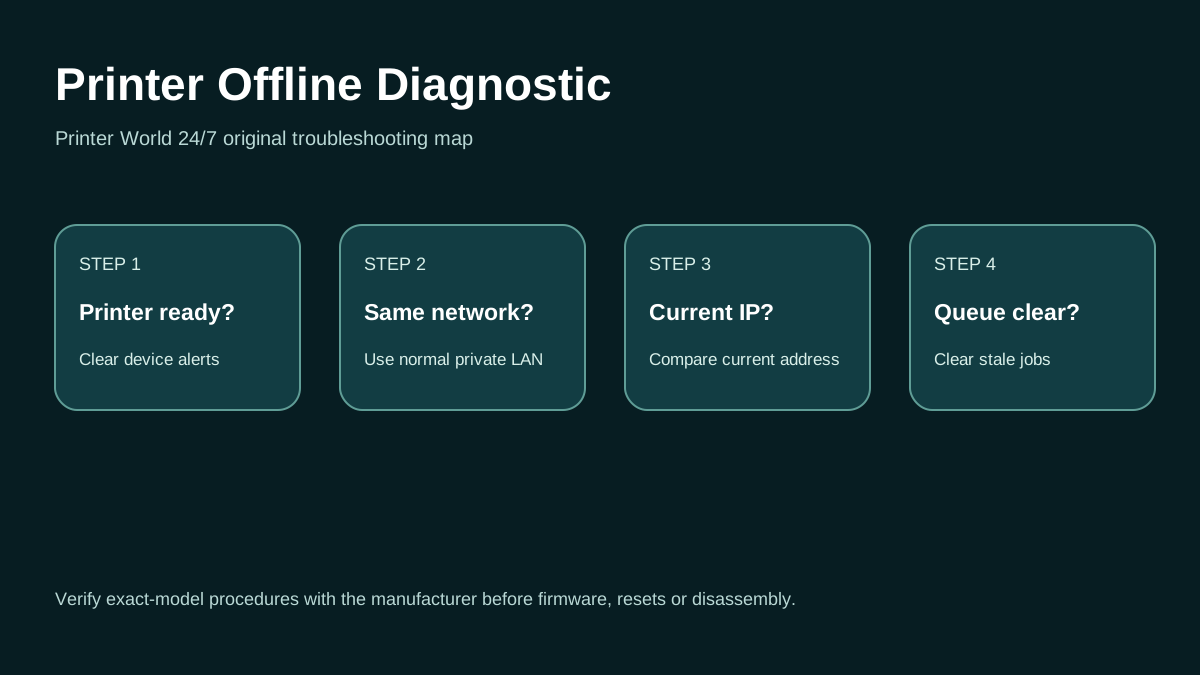
Printer Offline: 3 Safe Checks
A short original walkthrough of printer status, local network and print-queue checks before driver reinstallation.
Direct answer
Problem
Windows 11 lists a Brother printer but jobs will not print, the queue is unavailable/offline, or the printer disappears after a network change.
Most common causes
- The Brother device has an active panel error or is asleep/disconnected.
- Windows is targeting a duplicate or obsolete Brother queue.
- A failed job is blocking the queue.
- The Brother IP/subnet no longer matches the computer network.
Quick fix
- Wake the Brother device and confirm no toner, drum, paper, jam, cover or other blocking error is shown.
- For network models, print the network configuration page and note IP/subnet.
- Cancel failed Windows jobs.
- Check whether Windows contains multiple copies such as “Copy 1”.
Advanced diagnosis
- Open Settings > Bluetooth & devices > Printers & scanners and inspect the Brother queue. Cancel all failed jobs.
- Select the Brother queue that is actually working if duplicate printer instances exist. Brother documents that duplicate drivers can appear after changing USB ports or installing the driver multiple times.
- Brother specifically recommends checking IP address and subnet when network printing fails.
- Security software can block the device without an obvious prompt. Configure only the required trusted network access rather than disabling security permanently.
The detailed platform, network, safety and source sections below explain when each step applies.
Likely causes
- The Brother device has an active panel error or is asleep/disconnected.
- Windows is targeting a duplicate or obsolete Brother queue.
- A failed job is blocking the queue.
- The Brother IP/subnet no longer matches the computer network.
- Security software or Wi-Fi conditions prevent network communication.
30-second checks
- Wake the Brother device and confirm no toner, drum, paper, jam, cover or other blocking error is shown.
- For network models, print the network configuration page and note IP/subnet.
- Cancel failed Windows jobs.
- Check whether Windows contains multiple copies such as “Copy 1”.
- Test another device on the same LAN before reinstalling the Brother package.
Windows 11 instructions
- Open Settings > Bluetooth & devices > Printers & scanners and inspect the Brother queue. Cancel all failed jobs.
- Select the Brother queue that is actually working if duplicate printer instances exist. Brother documents that duplicate drivers can appear after changing USB ports or installing the driver multiple times.
- Run Windows Get Help printer troubleshooting.
- Compare Brother IP/subnet with the PC. Brother advises confirming that both are correctly located on the same network.
- If network configuration is correct but the queue remains stale, remove/re-add the intended device or reinstall the current Brother package for the exact model.
macOS instructions
- On Mac, check Printers & Scanners and add a fresh queue if the existing one no longer reaches the Brother printer.
- AirPrint can be used on compatible Brother models where vendor-specific functions are not required.
iPhone / Android checks where relevant
- On iPhone/iPad, same-network AirPrint testing can show whether the printer is reachable independently of Windows.
- On Android, an enabled print service can provide another comparison.
- Some Brother models provide a Wi-Fi/WLAN recovery function, but the exact control-panel steps vary by model and firmware.
Wi-Fi and network troubleshooting
- Brother specifically recommends checking IP address and subnet when network printing fails.
- Security software can block the device without an obvious prompt. Configure only the required trusted network access rather than disabling security permanently.
- A failed queue job can coexist with a healthy Wi-Fi connection, so clear the queue before resetting the network.
Brand and model-specific differences
Brother HL, DCP and MFC families differ in panel controls, Wi-Fi recovery steps and firmware behavior. Use the exact support page for the model. A simultaneous-button Wi-Fi recovery sequence documented for one model should not be generalized to another.
Error-code context
- “Offline” is a queue/communication state.
- Brother network configuration reports provide IP/subnet evidence that is more useful than repeatedly toggling the queue.
- Panel error codes for drum, toner, paper, fuser or other hardware must be resolved at the printer.
Safe troubleshooting
- Do not reset network settings until you have recorded SSID, static IP or business configuration.
- Avoid deleting every Brother driver if multiple Brother devices are intentionally installed.
- Do not permanently disable antivirus/firewall protections.
When professional assistance is actually necessary
Escalate when the Brother has correct IP/subnet but remains unreachable from multiple devices, network recovery repeatedly fails, firmware/hardware errors are present, or a managed business network controls addressing and firewall rules.
Related printer problems
Related technical routes
Model-specific guides
Official sources used for this guide
- Brother: Printer status is Offline or Paused
- Brother: Machine cannot print over the network
- Microsoft: Fix printer connection and printing problems in Windows
- Apple: About AirPrint
Sources are linked for verification. Printer World 24/7 is independent and is not affiliated with the manufacturers or operating-system vendors referenced here.